

Apple Car Play™
USER GUIDE
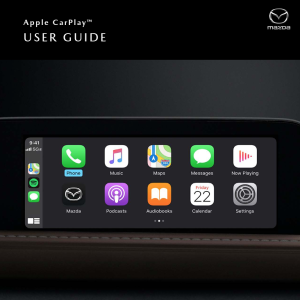
Available on select models, Apple CarPlay™ seamlessly integrates your iPhone® with your vehicle’s Mazda Connect™ display, allowing you to access useful features and apps while staying focused on the road ahead.
BASIC REQUIREMENTS
• To use Apple CarPlay, you’ll need an iPhone 5 or above
• For best performance, it is always recommended that you update your iPhone to the latest iOS version
• You’ll need an Apple Lightning® to USB cable to make the connection
• Siri® must be enabled to use Apple CarPlay
CONNECT YOUR i PHONE
1. Connect an Apple Lightning to USB cable to your iPhone and the USB port in the center stack or inside the center armrest (depending on vehicle model)
2. Mazda Connect™ will detect your iPhone
3. If you’re a first-time user, follow the on-screen prompts to enable Apple CarPlay
4. If you’re a first-time user, select ”Allow” on the pop-up notification displayed on your iPhone. This will allow your vehicle to access Apple CarPlay content on your iPhone without requiring you to unlock your iPhone first
On vehicles equipped with Wireless CarPlay, such as the 2023 Mazda CX-50, an additional pop-up notification will be displayed on your iPhone asking, “Use Wireless Apple CarPlay with “Mazda”?” Select “Enable Wireless CarPlay” if you’d like to enable wireless connectivity or select “Use USB Only” if you’d like only to use Apple CarPlay when your iPhone is connected via USB.
Enabling a Wireless Apple CarPlay Connection After Connecting Via USB
After the Apple CarPlay user interface has appeared on the Mazda Connect display, you can unplug the USB cable which will end the current Apple CarPlay session. To enable the wireless connection to Apple CarPlay:
1. Press the Home button
2. Tilt the Commander Knob to the right
3. Select the desired Apple device
4. Mazda Connect will establish a wireless connection with the device and the Apple CarPlay user interface will
resume on the Mazda Connect display 2
COMMANDER CONTROL
Once connected, the easiest way to quickly access Apple CarPlay from the Mazda Connect screen is to press and HOLD the Home button until the Apple CarPlay screen appears.
Once connected, slide the Commander control to the right when on the Mazda Connect home screen and the Apple CarPlay icon is present.
SECTIONS AND ICONS
MAPS
Displayed prominently in the middle of the screen.
Note: The Maps section of Dashboard View will always display Apple Maps. Third-party navigation apps can be used via Apple CarPlay, but will not appear in Dashboard View.
SMART SIRI SUGGESTIONS
Provides quick access to commonly used tasks. This allows you to view, interact with and/or select three of your most recently used apps (e.g., music, podcasts, meeting notices via calendar app, etc.).
SIDEBAR
Displays your most recent (or currently in-use) icons, time, signal and network, and the App View icon (formerly the “Home” icon).
• Using the Commander control, highlight and press the App View icon to change to App View
• Using the Commander control, highlight, press and HOLD the App View icon to activate Siri
APPS
Ten app tiles are displayed on the App View screen. Rotate the Commander control to highlight an app in blue. Press down to launch.
RECENTLY USED APPS
Displayed on the left side of the App View screen.
Note: The recently used apps sidebar is not selectable when in App View.
DASHBOARD VIEW/APP VIEW
• Short press – Switches to Dashboard View
• Long press – Activates Siri
Displays upcoming appointments from your Calendar App. If a destination is attached to an appointment, you can launch Apple Maps for directions straight from the Calendar App.
Access personalization settings that include:
• Do Not Disturb While Driving (pauses all notifications)
• Appearance – “Automatic” (light/dark) or “Always use Dark Mode”
• Siri Suggestions (On/Off)
• Show album art (On/Off)
Select the Mazda icon to return to the Mazda Connect home screen. You can also press and HOLD the Home button on the Commander control to toggle between Apple CarPlay and Mazda Connect interfaces.
Dots at the bottom of the screen indicate that there are more available apps. Rotate the Commander control to the right to view more apps.
USING THE COMMANDER CONTROL ON THE HOME SCREEN
The sidebar contains recently used apps, clock, signal strength and the Home button. The sidebar is available on all Apple CarPlay screens
• To highlight a recently used app, rotate the Commander control to the left, then press down to select and launch the highlighted app
• To highlight the Home button, rotate the Commander control to the left. Press the knob to return to the Apple CarPlay home screen. Press and hold the knob to activate Siri
MAIN DISPLAY
The middle of the screen displays apps compatible with Apple CarPlay
• Rotate the Commander knob left or right to highlight the desired app (or feature tile in Dashboard view)
▪ Slide the Commander control forward/rearward to quickly skip from one line to the next
• Press down on the knob to select and launch the app (or to access a feature tile in Dashboard View)
ADDITIONAL APPS
• To access additional pages of apps, rotate the Commander control to the right. Or, at the end of a line of icons,
slide the Commander control to the right
HOME BUTTON
• Press and HOLD the Home button to toggle between Apple CarPlay and Mazda Connect screens (when a compatible iPhone is connected)
• Press the Home button to quickly return to the Apple CarPlay home screen from inside Apple CarPlay apps
Press the Home button from Dashboard View or App View to toggle between the two views
ENTERTAINMENT BUTTON
• When listening to music from an app that is compatible with Apple CarPlay, press the Entertainment button
to pull up the Now Playing screen
When listening to music via Apple CarPlay, the Entertainment button will open the Now Playing screen, even while using Mazda Connect
MAP BUTTON
• Press the Map button to quickly access the Apple Maps screen or current route guidance
• If a route is set using Apple Maps, the Map button will open the Apple Maps screen, even while using Mazda Connect
BACK BUTTON
• Press the Back button to return to the previous screen
ACTIVATING SIRI
STEERING WHEEL CONTROLS
Press the “Talk” button on the steering wheel to activate Siri.
Note: Not all third-party apps support voice recognition through Siri.
COMMANDER CONTROL
On Dashboard View, rotate the Commander control
to highlight the App View/Dashboard View icon. Then, press and HOLD the Commander control to activate Siri.
SAYING COMMANDS
After Siri is activated, you’ll hear an audible prompt, with the signature Siri light waves at the bottom of the display.
For more information on Siri and its functionality, visit: https://www.apple.com/ios/siri/
USING THE PHONE APP
• From the App View screen, rotate the Commander control to highlight the Phone app icon and press the Commander control down to open
• Rotate the Commander control to choose between: Favorites, Recents, Contacts, Keypad and Voicemail
• After selecting a menu item (e.g., Contacts), slide the Commander control rearward for additional options
BROWSING CONTACTS
• Rotate the Commander control to browse contacts one at a time
• Slide the Commander control rearward (or forward) to skip contacts by letter
PLACING A PHONE CALL
• Via Contacts – (when parked) Highlight the contact you want to call. Press the Commander control to call that contact
• Via Keypad – (when parked) Rotate the Commander control to highlight numbers on the keypad. Press the Commander control to enter a number
• Via Siri – Press the “Talk” button on the steering wheel and say, “Call,” followed by a contact’s name
ANSWERING A PHONE CALL
• Rotate the Commander control to highlight the “Answer” icon on the screen. Press the Commander control to answer
• Press the “Talk” button on the steering wheel to answer
1 CATEGORIES – Change content categories 2 CONTENT – Scroll to view and select content
PLAYING MUSIC
• From App View – Rotate the Commander control to highlight Music, then press down to select and launch
• If third-party music and media apps are downloaded and installed (e.g., Spotify, Pandora), rotate the Commander control to select and launch the desired app
• Once an app launches, rotate the Commander control to scroll through your music or audio choices
• Stop at the desired song, artist, album or playlist and press down on the Commander control to play
1 BACK – Return to previous 3 NOW PLAYING – With controls for pause/play and skip
2 UP NEXT – See song in queue 4 SONG OPTIONS – Scrub bar, shuffle, more options, repeat
USING VOICE COMMANDS TO PLAY MUSIC
Press the “Talk” button on the steering wheel to activate Siri, then say, “Play,” followed by your desired music choice
(e.g., song, title, album name, artist name).
ACCESSING APPLE MAPS
• Via App View – On the Apple CarPlay home screen, rotate the Commander control to highlight the Maps icon and press down to select
• Via Dashboard View – Apple Maps is always displayed in Dashboard View. To view the map at full screen, simply rotate the Commander control to highlight the map and press down to select
1 DESTINATION OPTIONS 2 MAP CONTROLS
INTERACTING WITH APPLE MAPS
• Menu options are listed on the right side of the screen. If map options are not visible, press down on the Commander control to bring them up
• To center the map, rotate the Commander control to highlight and select the arrow icon
• To toggle between 3D and flat-map images, highlight and select “3D”
• To adjust the map area, rotate the Commander control to the right to highlight and select the map adjust button
• To Zoom in and out of the map, rotate the Commander control to the right to highlight and select the toggle buttons (+/-)
NAVIGATING TO A DESTINATION
• Rotate the Commander control to select either Search or Destinations
▪ Search (POIs, such as gas stations, parking, restaurants)
▪ Destinations (via Siri voice command or via manual input) – View and navigate to recently visited destinations
• Press the “Talk” button on the steering wheel to activate Siri, then say, “Navigate to,” followed by your destination
• You can also use Siri to find POIs (e.g., “Find a gas station nearby”)
SHARE ETA
• Use the Commander control to select “Share ETA”
• Send your ETA to a contact
SEARCH
• Select the Search function during a route to bring up additional POIs
• Select a POI to add it as a “via point” in your route
READING AND REPLYING TO MESSAGES
• All incoming messages are briefly displayed as banner notifications on the bottom of the screen. To read or respond, press down on the Commander control when the banner notification is visible. Siri will read your message and prompt you to reply. It will also give you the option to call the sender or replay the message
• After the banner notification disappears, you’ll see a red notification icon on your Messages app, indicating that you have an unread message
• Rotate the Commander control to highlight Messages on the Home Screen (App View) or in the sidebar (recently used apps). Press down to select
• Select a message to have Siri read it aloud. Siri will ask you if you want to reply to the message
SENDING MESSAGES
• Activate Siri, then say, “Text,” followed by the contact’s name
• Siri will prompt you to dictate and confirm your message
ADDITIONAL FEATURES
• Review – Replay and review your messages instantly and quickly (bypass Siri)
• Send Manually – Use the Commander control to send a message manually by highlighting “Send” and pressing down
Apple CarPlay™
TOUCHSCREEN OPERATION
By default, Apple CarPlay can be operated via the commander control at all times and via the touchscreen while the vehicle is stopped. However, you can enable touchscreen operation while the vehicle is in motion in the Mazda Connect Settings.
HOW TO ENABLE TOUCHSCREEEN IN MOTION:
1. Press the Home button.
2. Scroll down and select Settings.
3. Scroll down and select Connectivity Settings.
4. Select Bluetooth®/Phone Connectivity Settings.
5. Scroll down and select a Apple
CarPlay compatible device.
6. Scroll down and select Touchscreen in Motion for All Devices.
All devices connected to Apple CarPlay can be controlled via the touchscreen while the vehicle is in motion with the box checked
*Touchscreen in Motion is only available on the 2022 Mazda CX-50
Connect with us

Recent Blog Entries
- Everything You Need to Know About the 2026 Mazda CX-30
- Selling Your Car to a Mazda Dealer: Why It’s a Better Option Than Online Buyers
- Maximizing Your Mazda Trade-In Value in Camp Springs, MD
- Avoid Common Leasing and Financing Mistakes with Your Mazda
- How Our Finance Experts Simplify Buying a Mazda in Camp Springs, MD